Running Jobs on Demand
Use the Dashboard to start and stop jobs on demand.
Starting Jobs
To start a job, follow the steps below:
-
Go to the Dashboard, select the job from the list of jobs, and click Run Job.
-
Choose one of the following options:
-
Run for all VMs: The job will run for all VMs.
-
Run for selected VMs: The job will run for the VMs.
-
Run for failed VMs: The job will run for previously failed VMs.
-
-
If the type of the Backup Repository for your job is Incremental with full backups, you will have to choose between the following backup types:
-
Incremental: Your job will create an incremental backup.
-
Full: Your job will create a full backup. If you choose this option, please choose the full backup mode:
-
Synthetic full: The application will first perform an incremental backup – that is, will transfer only the VM data that changed since the last backup, – and will then transform the available data into a full backup.
-
Active full: Will read all source VM data and transfer it to the backup repository.
-
-
-
In the dialog that opens, define the scope of your job:
-
Click the Run button to confirm your operation.
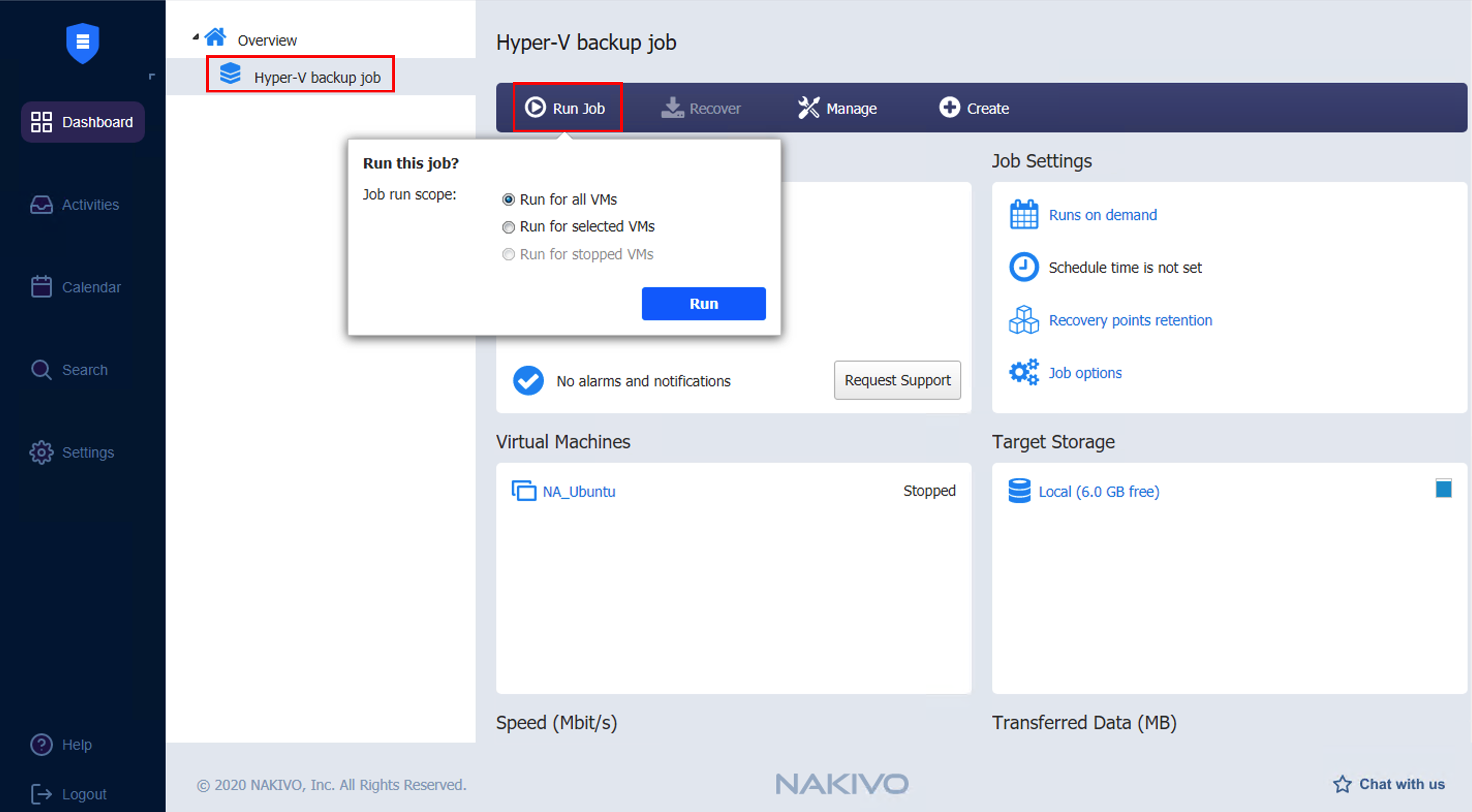
The product will close the dialog box and start running your job.
Stopping Jobs
To stop a job that is currently running, follow the steps below:
-
Go to the Dashboard, select the job from the list of jobs, and click Stop Job.
-
In the dialog that opens, choose either of the following:
-
Stop for all VMs: Your job will stop for all VMs.
-
Stop for selected VMs: Your job will stop for the jobs you select.
-
-
Click the Stop button in the dialog to confirm your operation.
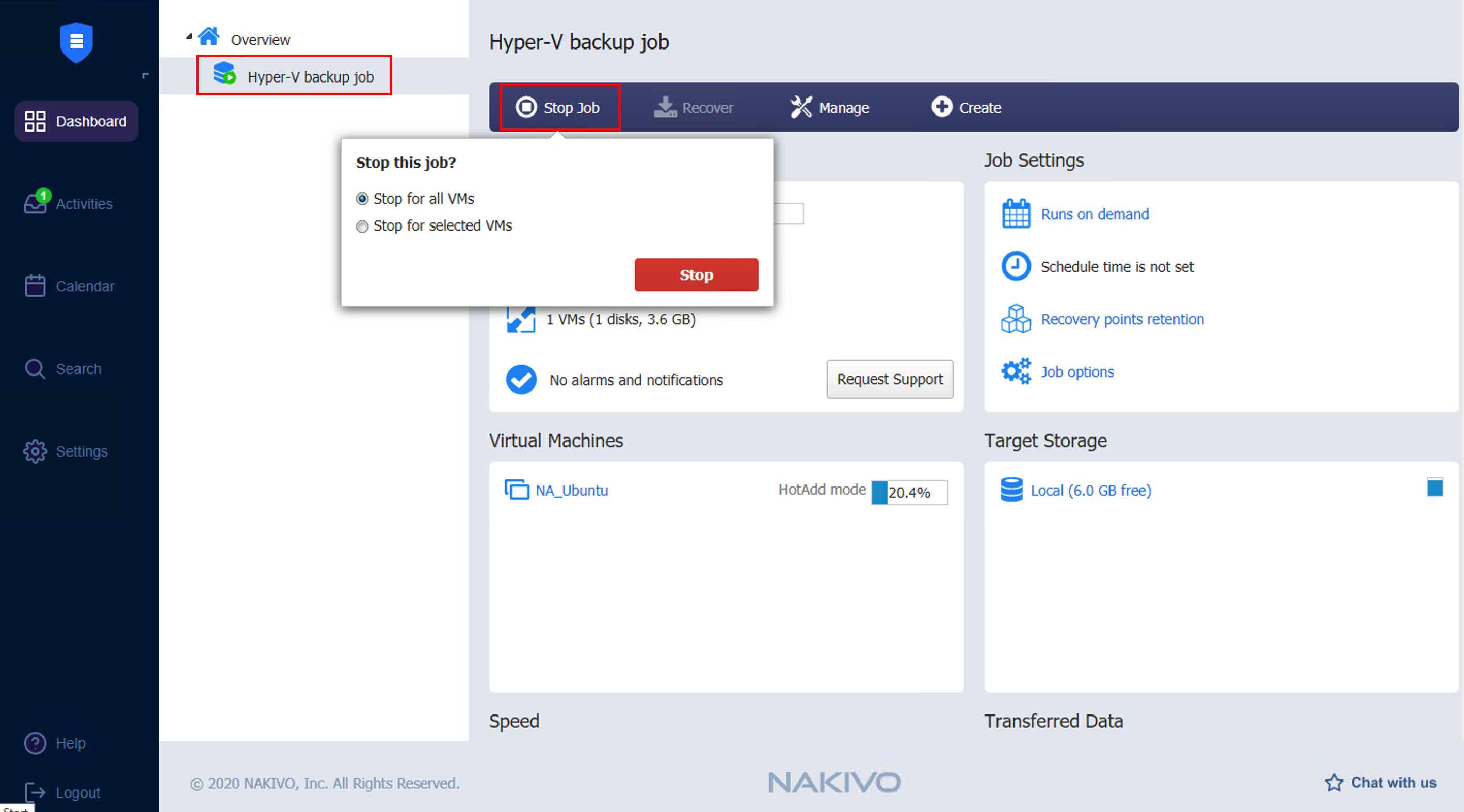
The product will close the dialog box and stop your job.