Installing on QNAP NAS Manually
Before you begin installing NAKIVO Backup & Replication on a NAS, make sure your NAS model is supported and you have downloaded the installer (.qpkg file) for QNAP NAS.
Note
Installing updates of NAKIVO Backup & Replication on your NAS-based backup appliance requires accurate knowledge of the hardware system information.
Refer to the following page to learn how to identify your QNAP device CPU model: How to Identify the CPU Architecture of a QNAP NAS Processor.
To install NAKIVO Backup & Replication on a NAS:
-
Open the QNAP Desktop in your browser by entering the IP address of your QNAP NAS.

-
Go to App Center.
-
Click the Install Manually icon.

-
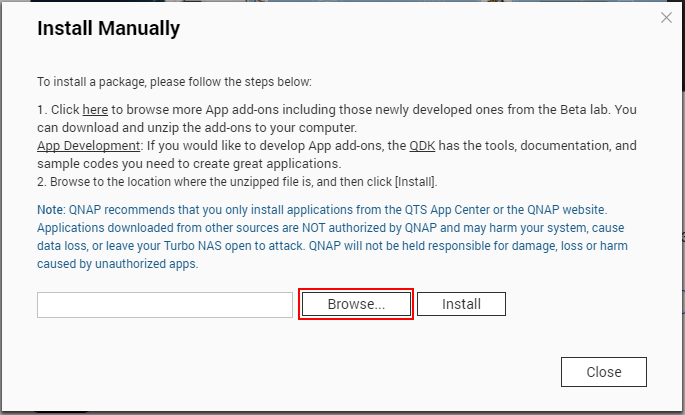
Click Browse in the window that appears and locate the installer (
.qpkgfile) on your computer.
-
Click Install.
-
Wait until the installation is complete.


By default, NAKIVO Backup & Replication interface is available at the IP address of your QNAP NAS on the port 4443: https://<IP_address_of_QNAP_NAS>:4443.
Refer to Getting Started to better understand how to continue working with NAKIVO Backup & Replication.