Configuring SSL/TLS Settings
-
Install new certificate: A dialog opens allowing you to install a new TLS/SSL certificate for the NAKIVO Backup & Replication web interface. Certificates are generated either internally or through certification authorities. Proceed as follows to install a new certificate:
-
Click Browse and navigate to the location of either of the following certificate file types:
-
Private key: A file in the *.key format.
-
Private key password (optional): A password for your private key.
-
Certificate file: A file in the *.pem, *.crt, *.cer, *.p7b, or *.p7s format.
-
Intermediate certificate (optional): A file in one of the following formats: *.pem, *.crt, *.cer, *.p7b, *.p7s.
-
-
-
Accept all transporter certificates by default: Select this option to automatically accept all transporter certificates. After selecting the option, click Continue in the warning popup window that appears to confirm the selection.
-
Enforce usage of pre-shared keys for all transporters: Selecting this option makes sure that transport function only when pre-shared key is installed.
-
Trust expired self-signed transporter certificates: Selecting this option makes the solution trust the expired self-signed transporter certificates.
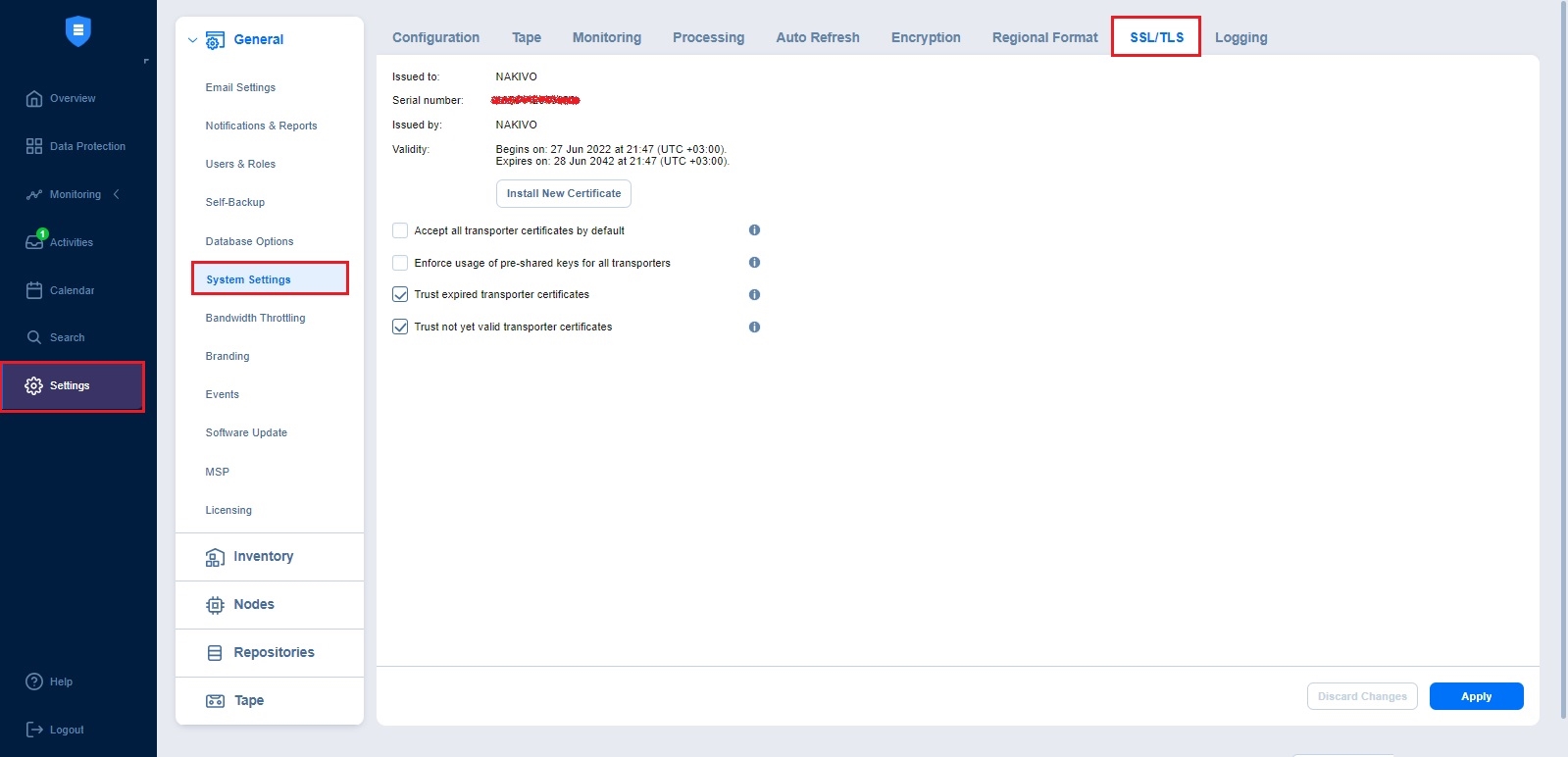
With these settings, you can install and manage TLS/SSL certificates for the web interface, define how transporter certificates are validated, enforce the use of pre-shared keys, and control trust behavior for self-signed or expired certificates.
Set the following options:
Notes
Repositories assigned to the inaccessible transporters are refreshed as well during the auto refresh.
The Auto refresh inaccessible transporters before job run option is supported only for the following platforms:
VMware vSphere
AWS
Cloud Director
Nutanix AHV
If any time zone other than (UTC+00:00, UTC) Coordinated Universal Time is chosen, daylight savings times are honored.