Licensing
The Licensing page displays information about your current license and allows you to manage licensing options for NAKIVO Backup & Replication.
Checking License Details
To check your license details, follow these steps:
-
Go to the main menu of NAKIVO Backup & Replication and click Settings > General.
-
Go to the Licensing tab to see license details.
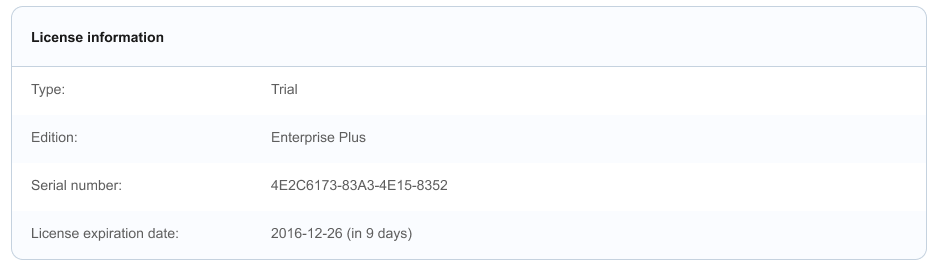
In the License Information section, you can find detailed license information, including:
-
Type: Type of the license
-
Edition: Edition of the license
-
Serial number: Serial number of the license
-
License expiration date: Date when the license expires
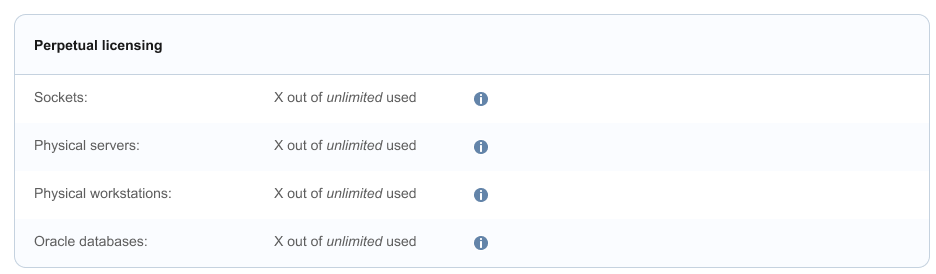
In the Perpetual licensing section, you can see the following information:
-
Number of licensed and used CPU sockets
-
Number of licensed and used VMs
-
Number of licensed and used physical servers
-
Number of licensed and used physical workstations
-
Number of licensed and used EC2 instances
-
Number of licensed and used Oracle databases
Note
This section is displayed when a perpetual license is applied to the product.
In the Per-workload subscription licensing section, you can see the following information:
-
Number of licensed and used workloads
-
Subscription end date

Note
This section is displayed when a subscription license is applied to the product.
In the Microsoft 365 subscription licensing section, you can see the following information:
-
Number of licensed and used Microsoft 365 users
-
Subscription end date

Note
In Multi-Tenant mode, Microsoft 365 users displays the total number of Microsoft 365 users used across all tenants for the Master tenant, and the total number of Microsoft 365 users used by a specific tenant.
In the NAS subscription licensing section, you can see the following information:
-
File share backup size in TB
-
Subscription end date

Note
In Multi-Tenant mode, the File share backup size in TB displays:
The total size of licensed file share objects (per 0.5 TB) used across all tenants for the Master tenant.
The size of licensed file share source objects (per 0.5 TB) allocated to the Local tenant.
If you are logged in as a tenant in multi-tenant mode, the following information is displayed in the Obtain more licenses section:
-
Email address of the master tenant
-
Contact phone of the master tenant
-
Company website of the master tenant
Enabling Trial Period
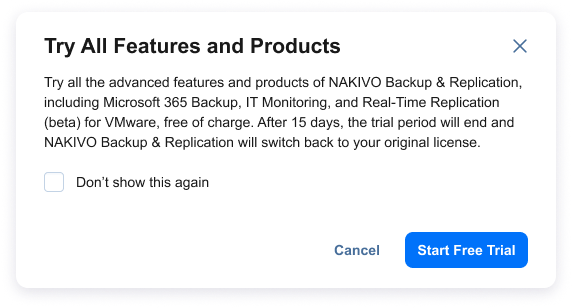
Optionally, you can click the Try All Features and Products button to enable all Enterprise Plus license features for 15 days. The trial period can be activated only once per product version. After this time period ends, NAKIVO Backup & Replication automatically switches back to your original license.
Notes
The button is not displayed in the following cases:
You are using NAKIVO Backup & Replication as a tenant in Multi-tenant mode.
You are using one of the following license editions:
Free
Trial
Beta
Promo
Enterprise Plus
MSP Enterprise Plus
Changing the License
To change your license, follow the steps below:
-
Go to the main menu of NAKIVO Backup & Replication and click Settings.
-
Go to the Licensing tab and click Change License.
-
In the window that appears, locate and select the new license file.
-
Click Apply to apply the new license.
Upgrading from Free License
If your license type is Free and the Trial license has not yet been applied to you deployment of NAKIVO Backup & Replication, you can try the full functionality of the solution for 15 days. To do that:
-
Open the Help Menu.
-
Select the Try full functionality option. A new popup window appears.
-
Click Start Free Trial.
Note
Once the Trial license expires, the product automatically switches back to the Free license.