Using Email with Two Factor Authentication
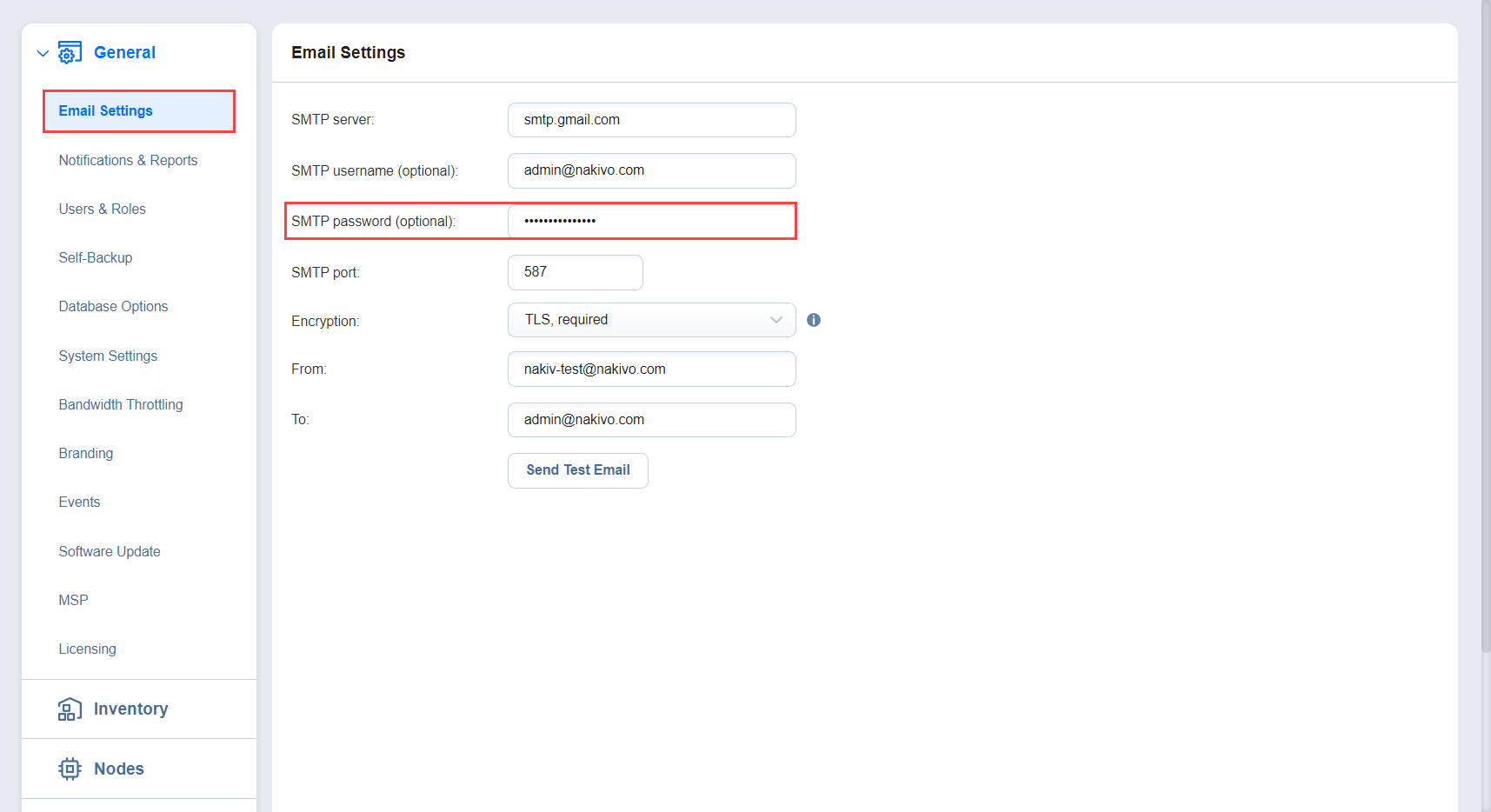
Many email providers require that the third-party apps or devices use two-factor authentication to sign into their accounts. Therefore, for correct email notification setup, you must grant access permissions to NAKIVO Backup & Replication via your account security settings and generate a unique SMTP password.
As an example, you can follow the instructions for setting up a Gmail account notifications below:
-
Log into your Google account and allow 2-step verification (you will be asked to complete a second step to verify it’s you when you sign in):

-
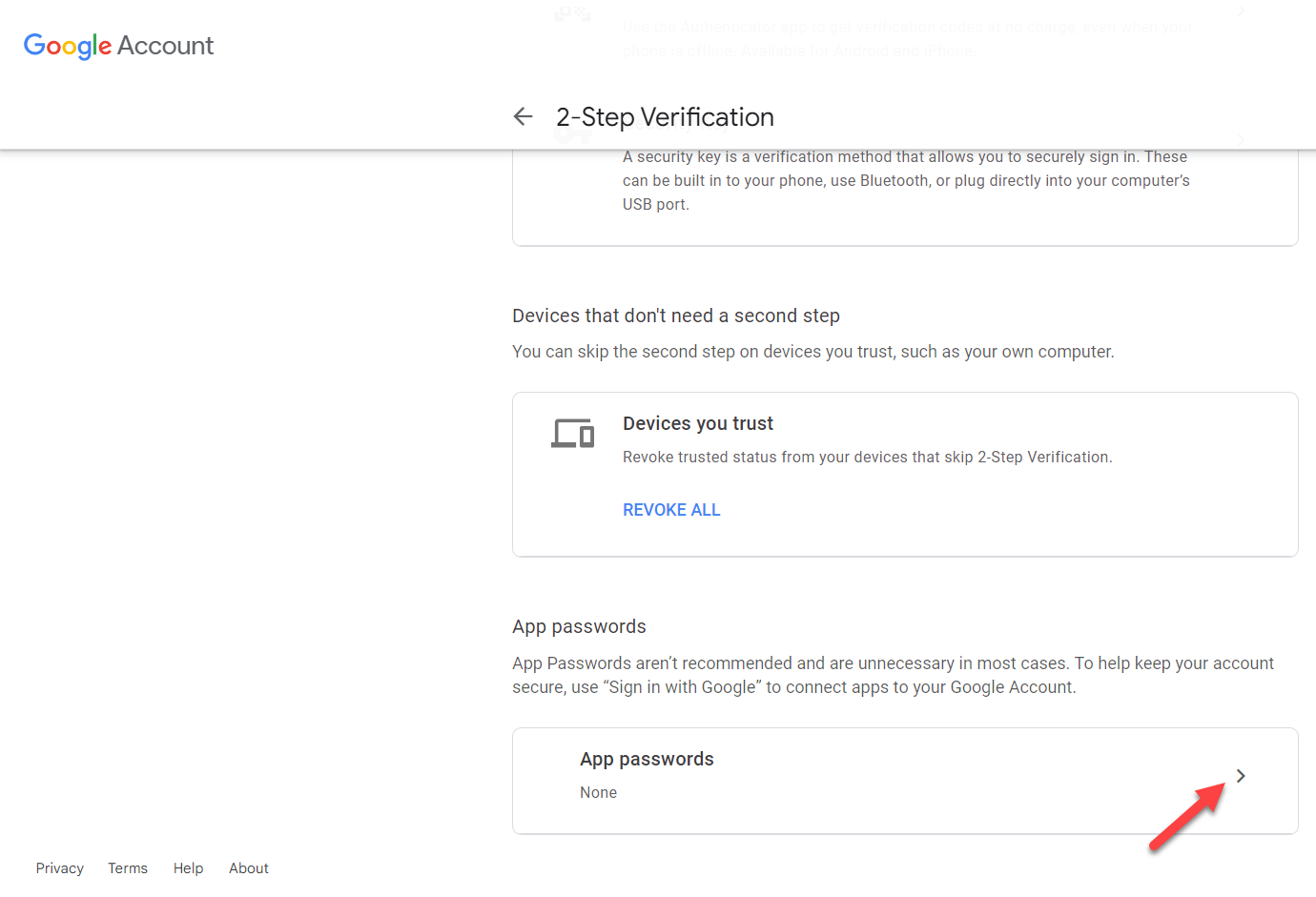
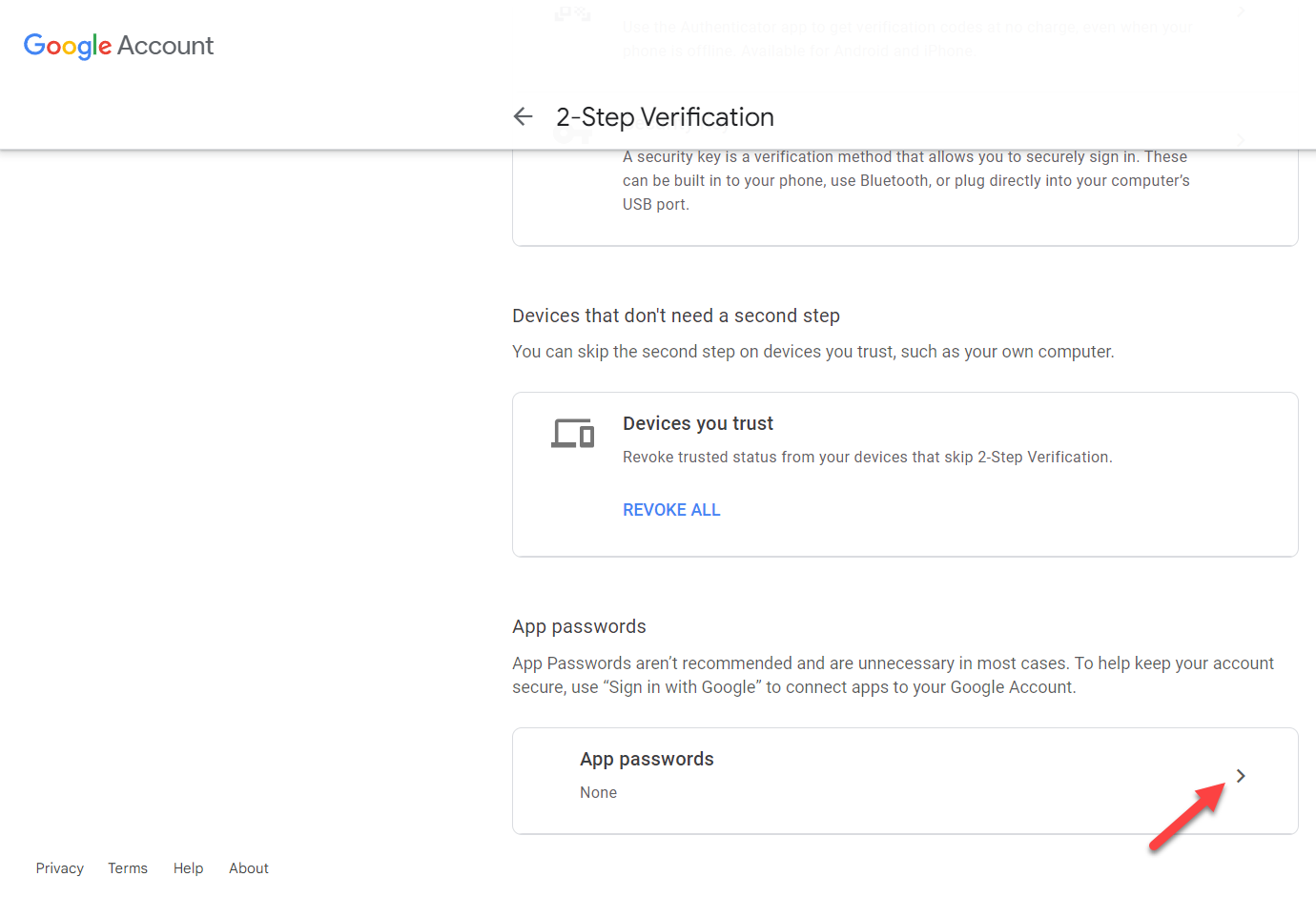
Scroll down to the App passwords section and click the arrow button to proceed with the password.
-
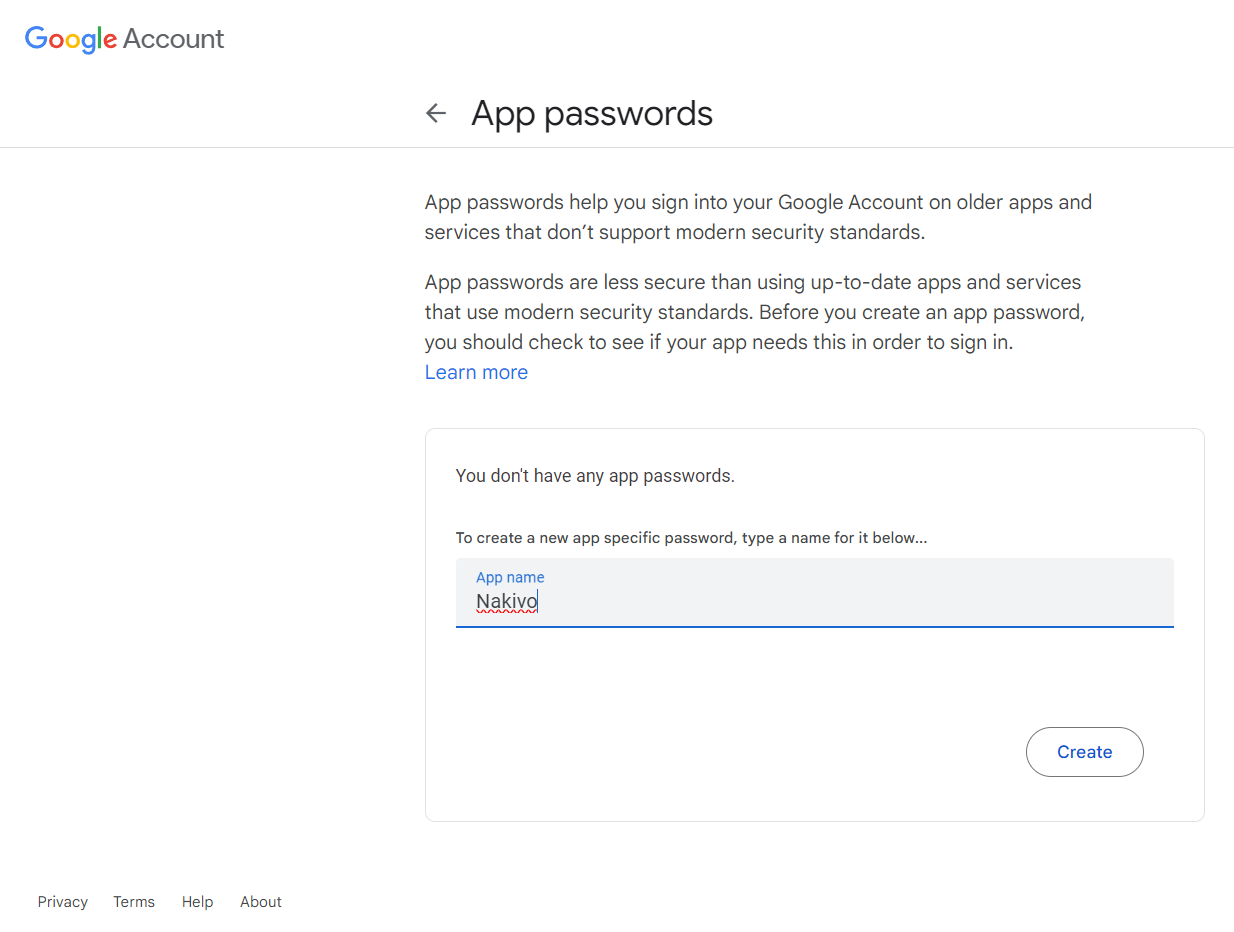
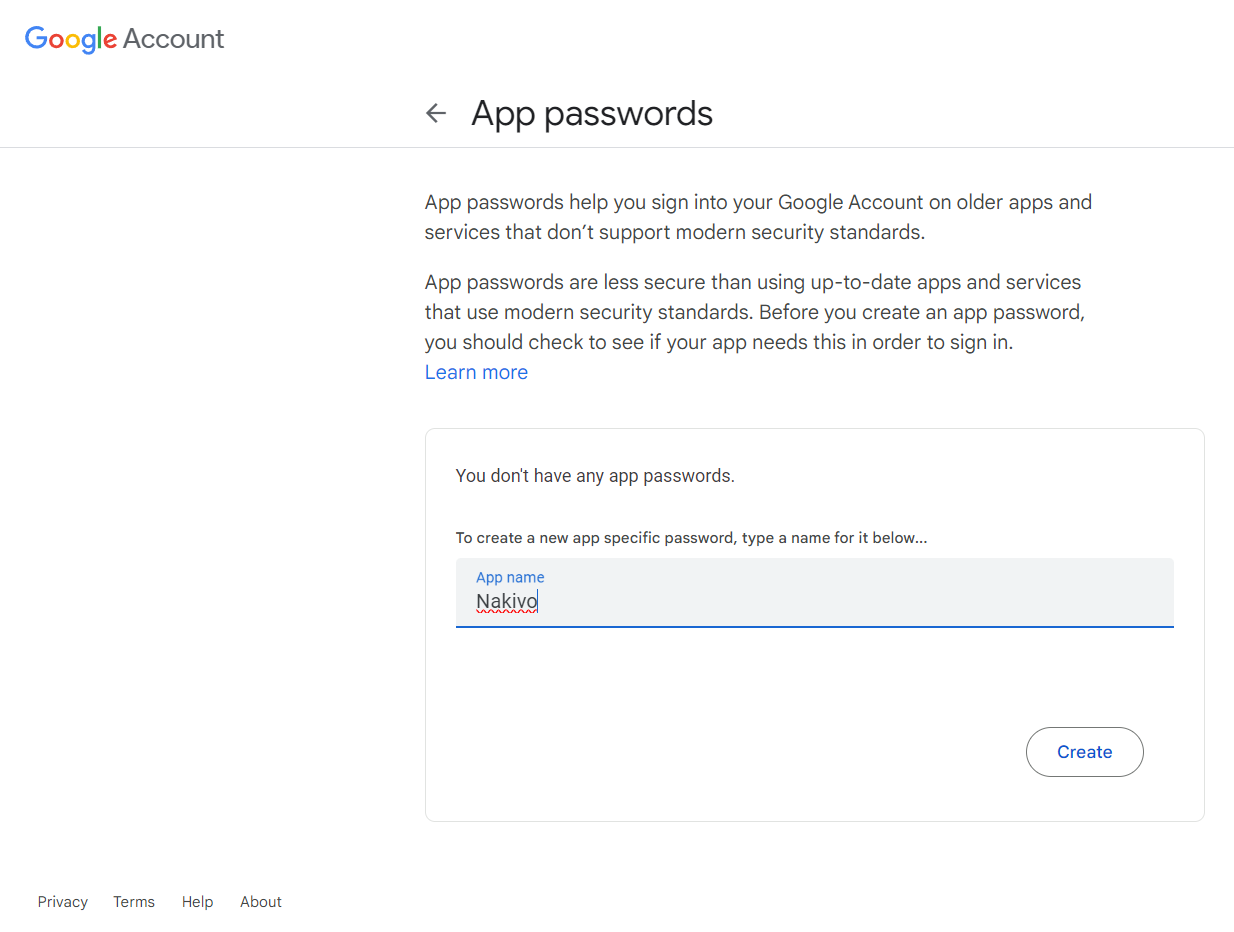
Type your app name and click Create to generate the password.
-
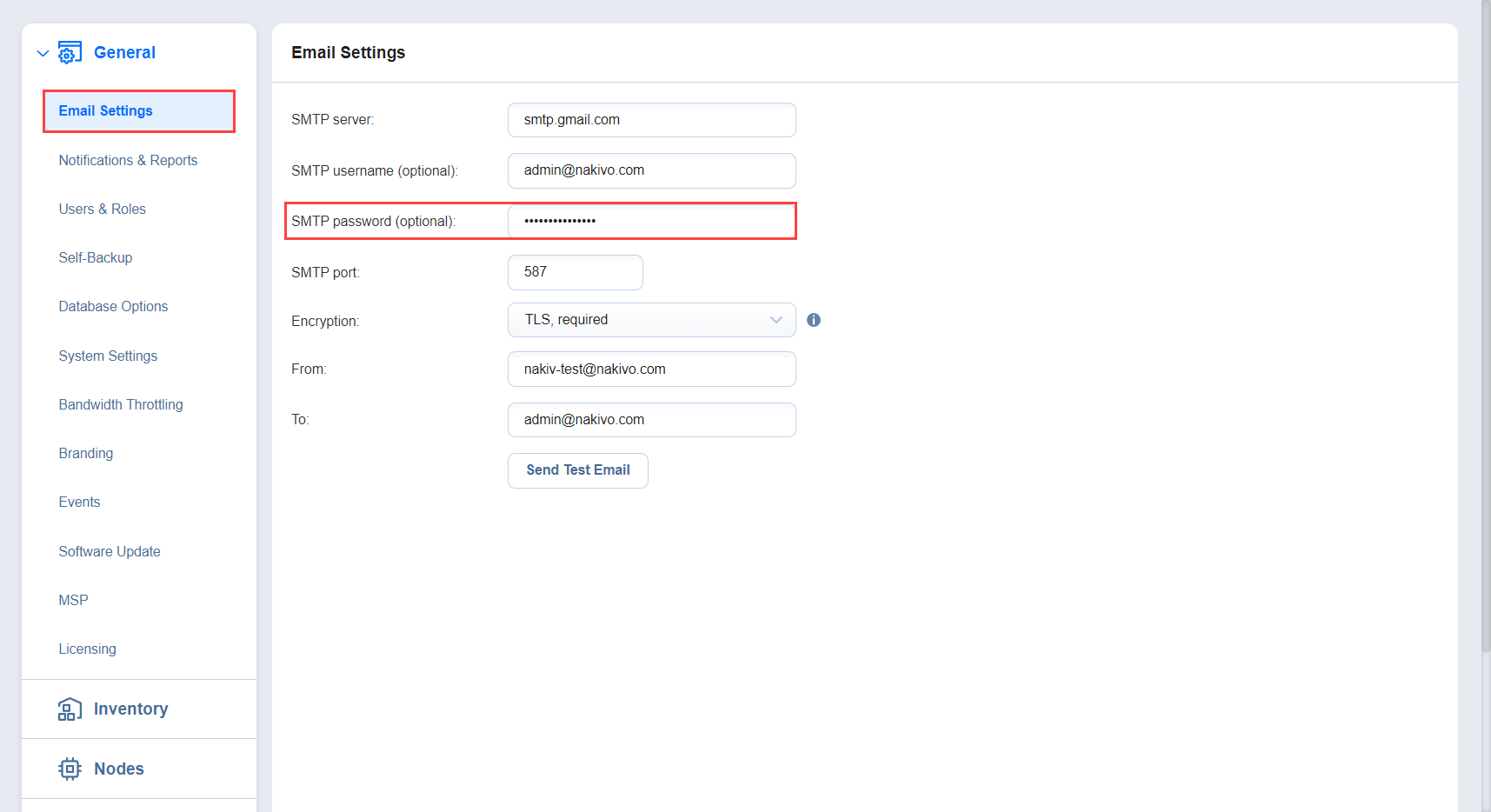
Now, copy the generated password and paste it into the SMTP password field in the Settings > General > Email Settings tab.